Output
Save data from your workflow to files.
Sockets
| Socket | Direction | Description |
|---|---|---|
input | Input | Data to save |
The Output tool has no output sockets - it's a terminal node in the workflow.
Supported Formats
CSV
Comma-separated values and other delimited text files.
Writing Modes:
| Mode | Description | Best For |
|---|---|---|
| Sink | Streaming write, memory efficient | Large datasets |
| Write | Collects all data first, then writes | When you need specific write options |
CSV Options:
| Option | Default | Description |
|---|---|---|
| Destination | (required) | Path for the output file |
| Separator | , | Field delimiter |
| Include Header | true | Write column names as first row |
| Quote Character | " | Character used to quote fields |
| Quote Style | necessary | When to quote fields |
| Line Terminator | \n | End-of-line character(s) |
| Null Value | (empty) | String to represent null values |
| Date Format | (ISO) | Format for date columns |
| Datetime Format | (ISO) | Format for datetime columns |
| Float Precision | (full) | Decimal places for floats |
Parquet
Columnar binary format, efficient for analytics.
Writing Modes:
| Mode | Description | Best For |
|---|---|---|
| Sink | Streaming write | Large datasets |
| Write | Collects all data first | When you need specific write options |
Parquet Options:
| Option | Default | Description |
|---|---|---|
| Destination | (required) | Path for the output file |
| Compression | zstd | Compression algorithm (zstd, snappy, lz4, gzip, none) |
| Compression Level | (default) | Compression level (algorithm-specific) |
| Row Group Size | (default) | Rows per row group |
| Statistics | true | Write column statistics |
IPC / Arrow
Apache Arrow's native binary format (.arrow, .ipc, .feather). Fastest format for read/write operations.
Writing Modes:
| Mode | Description | Best For |
|---|---|---|
| Sink | Streaming write | Large datasets, memory efficiency |
| Write | Collects all data first | Small datasets |
IPC Options:
| Option | Default | Description |
|---|---|---|
| Destination | (required) | Path for the output file (.arrow, .ipc, or .feather) |
| Compression | uncompressed | Compression (uncompressed, lz4, or zstd) |
- Intermediate files: Use IPC for temporary data between pipeline stages
- Cross-application sharing: IPC works with DuckDB, Spark, R, Julia, and other Arrow-compatible tools
- Maximum speed: IPC has the fastest read/write performance of any format
- Memory efficiency: Files can be memory-mapped for efficient access
Excel
Microsoft Excel spreadsheet files (.xlsx).
Writing Mode:
Excel only supports eager writing (data is collected before writing). There is no streaming sink support.
Excel Options:
| Option | Default | Description |
|---|---|---|
| Destination | (required) | Path for the output file (.xlsx) |
| Worksheet | Sheet1 | Name of the worksheet to create |
| Table Name | (empty) | Optional name for the Excel table object |
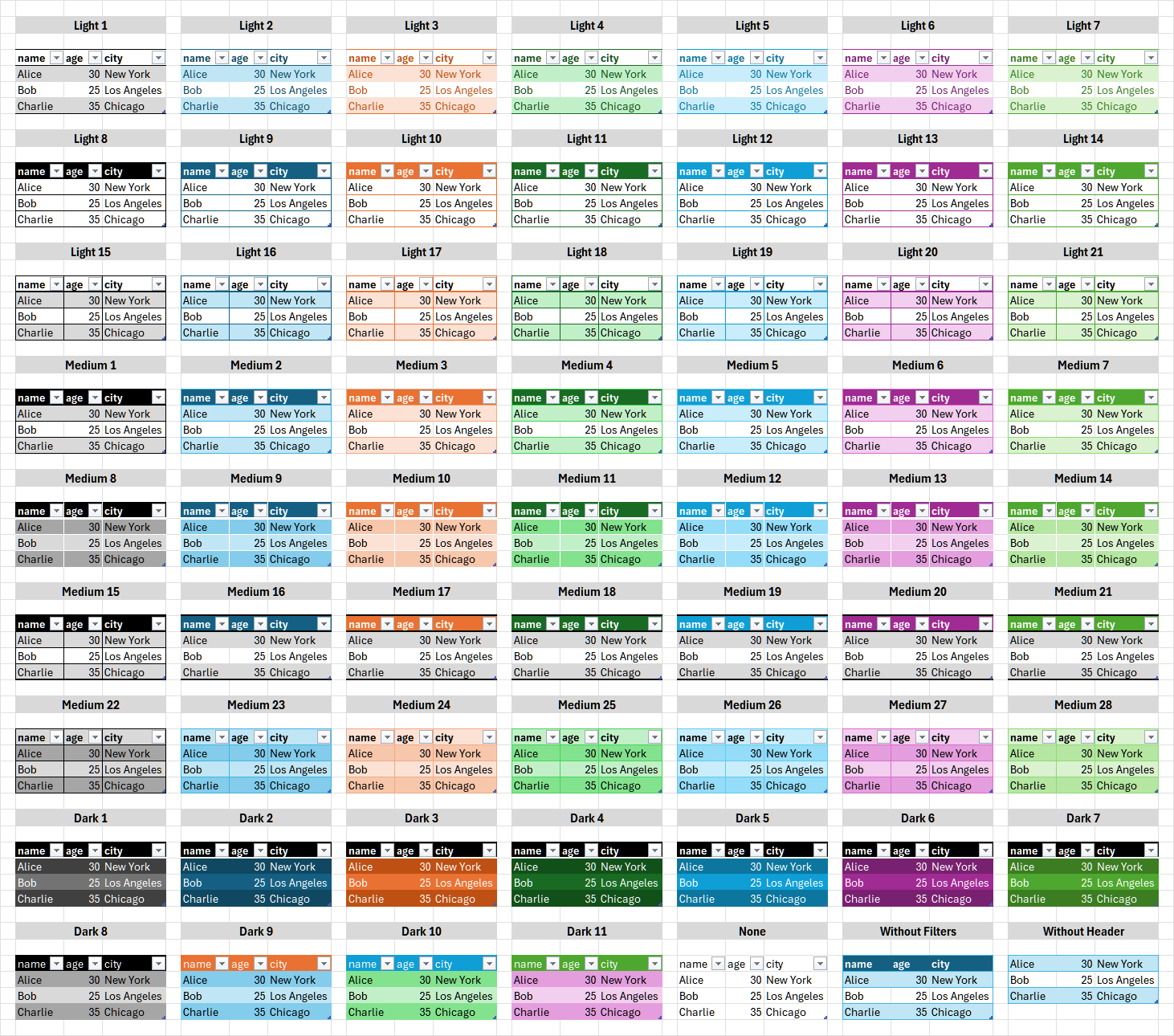
| Table Style | Table Style Medium 4 | Excel table style (e.g., "Table Style Medium 9") |
| Include Header | true | Write column names as header row |
| Autofilter | true | Enable autofilter dropdown in header |
| Autofit | false | Auto-calculate column widths to fit content |
| Hide Gridlines | false | Hide worksheet gridlines |
| Float Precision | 3 | Decimal places for float numbers |
| Sheet Zoom | 100% | Zoom level (10-400%) |
| Freeze Panes | (none) | Cell position to freeze (e.g., "A2" freezes top row) |
Excel table styles provide professional formatting. Popular options include:
- Light styles (1-21): Subtle, minimalist
- Medium styles (1-28): Balanced, good for most uses
- Dark styles (1-11): High contrast, bold headers
- None: Plain data without table formatting
You can also enter any custom Excel table style name. See the full visual reference below.
Click to view all Excel table styles
Avro
Apache Avro binary format (.avro). Row-based format for big data ecosystems.
Writing Mode:
Avro only supports eager writing (data is collected before writing). There is no streaming sink support.
Avro Options:
| Option | Default | Description |
|---|---|---|
| Destination | (required) | Path for the output file (.avro) |
| Compression | uncompressed | Compression (uncompressed, snappy, or deflate) |
| Schema Name | (empty) | Optional name for the Avro schema |
Use Avro when:
- Integrating with Hadoop, Kafka, or Spark pipelines
- Schema evolution is important for your data workflow
- Interoperability with Java/JVM ecosystems is required
For maximum performance within Sigilweaver, prefer IPC/Arrow or Parquet.
Configuration
- Add an Output tool to the canvas
- Connect an input wire from an upstream tool
- Select the output format (CSV, Excel, Parquet, IPC/Arrow, JSON, or Avro)
- Choose the destination path
- Configure format-specific options as needed
Examples
Saving to CSV
- Wire data into the Output tool
- Select "CSV" as the output format
- Enter the destination file path (e.g.,
/path/to/output.csv) - Adjust options like separator or header as needed
Saving to Parquet
- Wire data into the Output tool
- Select "Parquet" as the output format
- Enter the destination file path (e.g.,
/path/to/output.parquet) - Choose compression (zstd recommended for balance of speed and size)
Saving to IPC/Arrow
- Wire data into the Output tool
- Select "IPC / Arrow" as the output format
- Enter the destination file path (e.g.,
/path/to/output.arrow) - Choose compression if needed (uncompressed is fastest, zstd for smaller files)
Saving to Excel
- Wire data into the Output tool
- Select "Excel" as the output format
- Enter the destination file path (e.g.,
/path/to/output.xlsx) - Optionally configure worksheet name, table styling, and formatting options
- Use freeze panes to keep headers visible when scrolling
Saving to Avro
- Wire data into the Output tool
- Select "Avro" as the output format
- Enter the destination file path (e.g.,
/path/to/output.avro) - Choose compression (uncompressed for speed, snappy or deflate for smaller files)
Notes
- Destination directories are created automatically if they don't exist
- Sink mode is recommended for large datasets to minimize memory usage (CSV, Parquet, IPC, JSON/NDJSON)
- Excel and Avro do not support streaming - data is collected before writing
- IPC/Arrow is the fastest format - use it when speed is critical
- Excel files are best for business reporting and sharing with non-technical users
- Overwriting: Existing files at the destination path will be overwritten
- Execution: Output tools only write files when the workflow is executed (not during preview)